If your DOOGEE S41 Pro still fails to reset or boot after trying both methods, contact DOOGEE support or visit a repair center—there may be a hardware issue.
Performing a Hard Reset on your DOOGEE S41 Pro is a powerful way to resolve persistent software issues, bypass a forgotten screen lock, or prepare the device for sale. This process will permanently erase all data, including apps, photos, and settings, returning the phone to its original factory state. Method 1: Hard Reset via Recovery Mode (Buttons)
This method is essential if you are locked out of your device or the touchscreen is unresponsive.
Power Off: Press and hold the Power button and select "Power off" to shut down the device completely.
Access Boot Mode: Simultaneously press and hold the Power and Volume Up buttons for about 5 seconds until the screen lights up. Navigate to Recovery:
In the Boot Mode menu, use the Volume Up button to highlight Recovery Mode.
Press the Volume Down button to confirm and enter the selection. Wipe Data:
Once the Android Recovery menu appears, use the Volume rockers to scroll down to "Wipe data/factory reset". Press the Power button to select it.
Confirm Reset: Scroll to "Factory data reset" (or "Yes") and press the Power button again to begin formatting.
Reboot: After the process says "Data wipe complete," select "Reboot system now" using the Power button. Method 2: Factory Reset via Settings
If you can still access your phone's menu, this is the simplest method. Open the Settings app. Navigate to System > Advanced > Reset options. Tap Erase all data (factory reset).
Confirm by tapping Erase all data twice. Your phone will reboot automatically once finished. Important Precautions
Back Up Your Data: Since this wipes everything, ensure your important files are backed up to Google Drive or an external SD card. How to Hard Reset DOOGEE S41 Pro
Google Account Lock: If you reset via buttons, you may be asked for your Google account credentials (FRP lock) upon restarting. Make sure you know your login details.
Battery Level: Ensure your battery is at least 30-50% charged to prevent the phone from powering off during the reset, which could corrupt the system.
Whether you're troubleshooting persistent lag, preparing to sell your device, or have unfortunately forgotten your screen lock PIN, performing a hard reset on your DOOGEE S41 Pro is the most effective way to restore it to factory settings.
A hard reset wipes all personal data, including photos, apps, and settings, returning the device to its "out-of-the-box" state. Essential Pre-Reset Checklist
Backup Your Data: Since this process erases everything, ensure you have backed up important files to Google Drive or a physical computer.
Charge Your Battery: Ensure your device has at least 50% battery to prevent it from shutting down mid-process, which can cause software corruption.
Know Your Google Credentials: Due to Android's Factory Reset Protection (FRP), you will likely need to sign in with the Google account previously used on the device after the reset. Method 1: Hard Reset Using Hardware Buttons (Recovery Mode)
Use this method if your phone is locked or the screen is unresponsive. Hard Reset DOOGEE S41 Pro
Hard resetting a DOOGEE S41 Pro is a critical troubleshooting step used to resolve severe software glitches, remove forgotten screen locks, or wipe personal data before selling the device. This process returns the phone to its original factory state by erasing all internal storage, including apps, photos, and settings. Preparing for the Reset Before proceeding, ensure your device has at least 30% battery
to prevent it from shutting down mid-process, which could corrupt the firmware. If you still have access to the phone, back up your data immediately, as a hard reset is irreversible. Step-by-Step Hard Reset Instructions
The most common way to perform a hard reset on the DOOGEE S41 Pro is through Recovery Mode
, especially if you cannot access the standard settings menu. If your DOOGEE S41 Pro still fails to
To hard reset your DOOGEE S41 Pro , you can use either the hardware buttons (useful if locked out) or the settings menu (if the phone is accessible). Method 1: Using Hardware Buttons (Recovery Mode)
This method is essential if you have forgotten your password or the device is unresponsive.
Power Off: Press and hold the Power key to turn off the device completely.
Enter Boot Mode: Press and hold the Volume Up and Power buttons simultaneously for about 5 seconds until the Boot mode menu appears. Alternative: Some versions may require Volume Down + Power.
Select Recovery Mode: Use the Volume Up button to navigate the menu and the Volume Down button to select Recovery Mode.
Wipe Data: Once in Recovery Mode, use the Volume keys to highlight Wipe data/factory reset and press the Power button to confirm.
Confirm Reset: Navigate to Yes or Factory data reset and select it with the Power button.
Reboot: After the process finishes, select Reboot system now to restart your phone. Method 2: Using the Settings Menu
Use this method if you can still access your phone's interface. Hard Reset DOOGEE S41 Pro
How to Hard Reset DOOGEE S41 Pro: A Step-by-Step Guide
Performing a hard reset on your DOOGEE S41 Pro can be a useful troubleshooting step if you're experiencing software issues or if you want to erase all data from your device. However, it's essential to back up your data before proceeding, as a hard reset will delete all files, settings, and applications.
Use this method if the screen is frozen, you forgot the lock, or the phone won’t start normally. Issue: "No Command" screen is stuck
Issue: The device does not enter Recovery Mode.
Issue: "No Command" screen is stuck.
Issue: Device is stuck in a Boot Loop after reset.
Before initiating the hard reset process, the following prerequisites must be met to ensure a successful operation and prevent data loss.
After the hard reset:
Enter Recovery Mode:
Navigate Recovery Menu:
Perform the Reset:
Clear Cache (Optional but Recommended):
Reboot the Device:
Before diving into the "how," let’s understand the "why." You might need a hard reset in the following scenarios:
Ensure your DOOGEE S41 Pro has at least a 50% charge. It's best to perform this action with a decent amount of battery life to avoid interruptions.
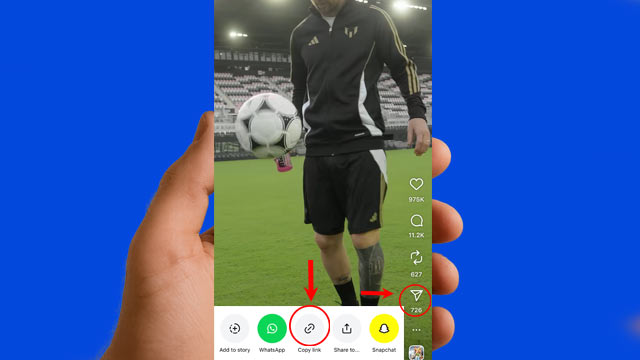
Open Instagram and find the Reel with the thumbnail you want to save. Tap the Reel and copy its URL from the app or your browser.
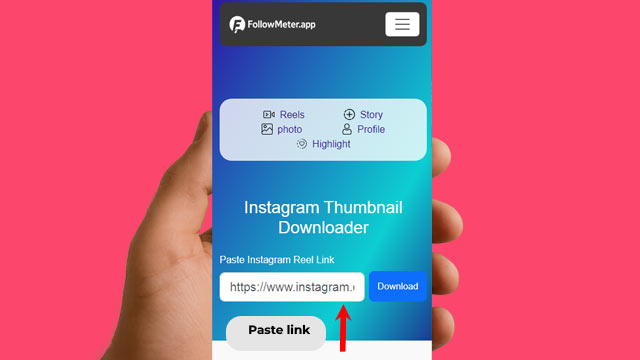
Enter the link into the input field on our website.
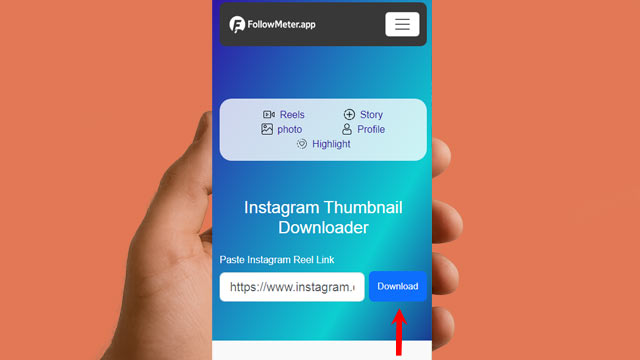
Click Download to save the HD image directly to your device.
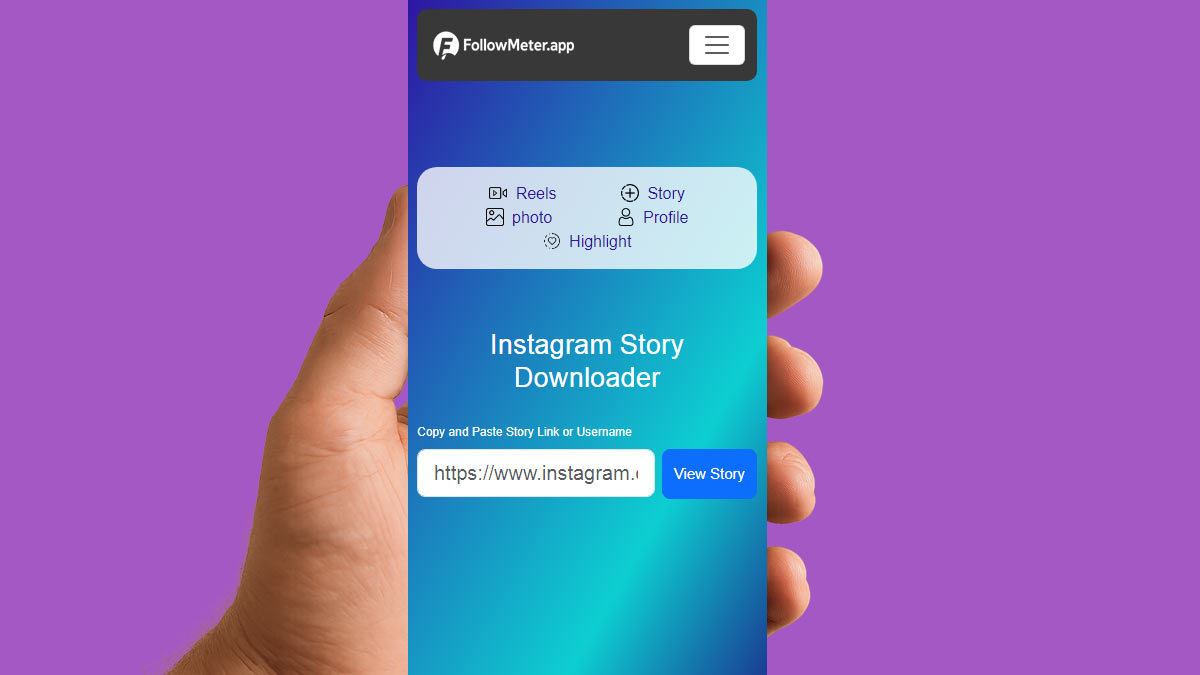
Instagram Story Downloader is a simple online tool that lets you download Instagram Stories quickly and easily. It’s safe, fast, and reliable—allowing you to save Stories while keeping their original quality and clarity.
Learn More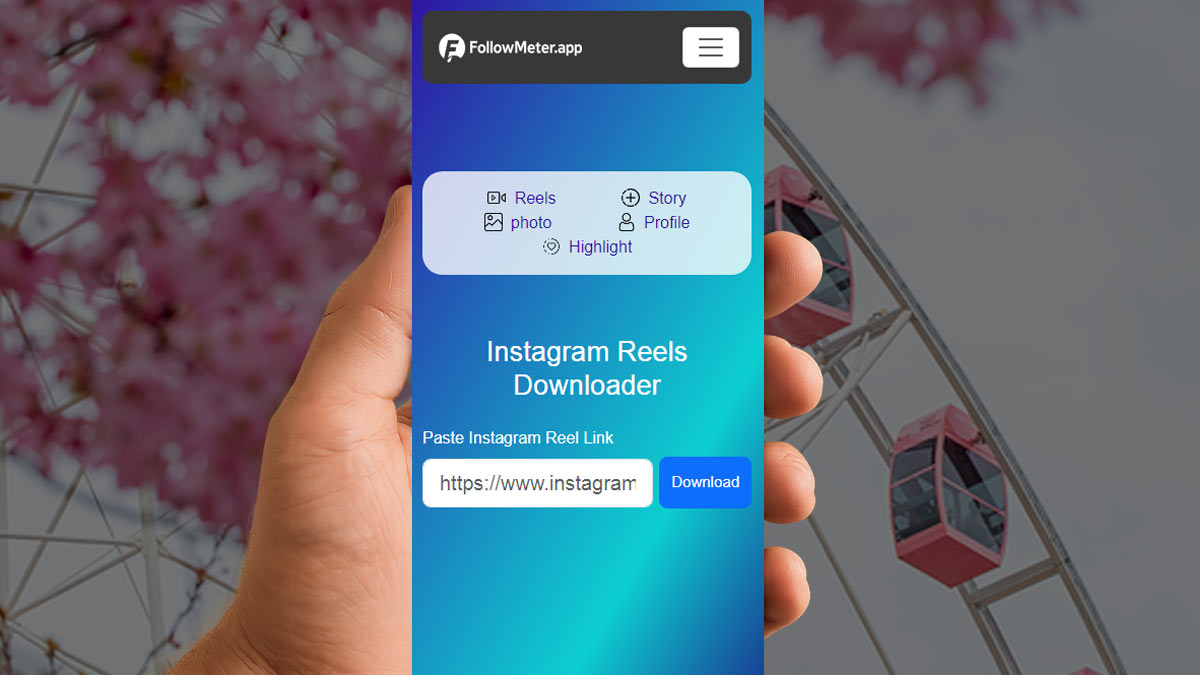
Instagram Reels Downloader is a free, fast, and easy-to-use online tool for saving Instagram Reels. Just copy the Reel link, paste it into the downloader, and save the video in high quality.
Learn More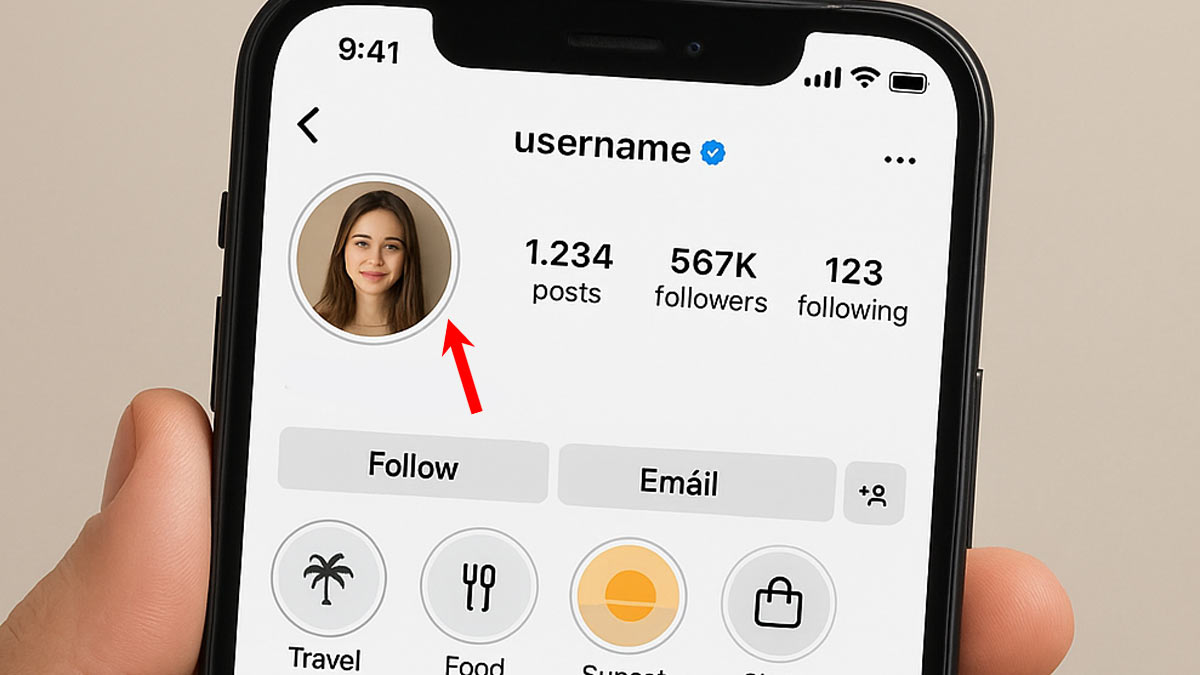
Instagram Profile Downloader is a free online tool that lets you view and download Instagram profile pictures in full size. Instead of blurry thumbnails or low-quality screenshots, you can instantly see display photos in HD or even 4K resolution.
Learn More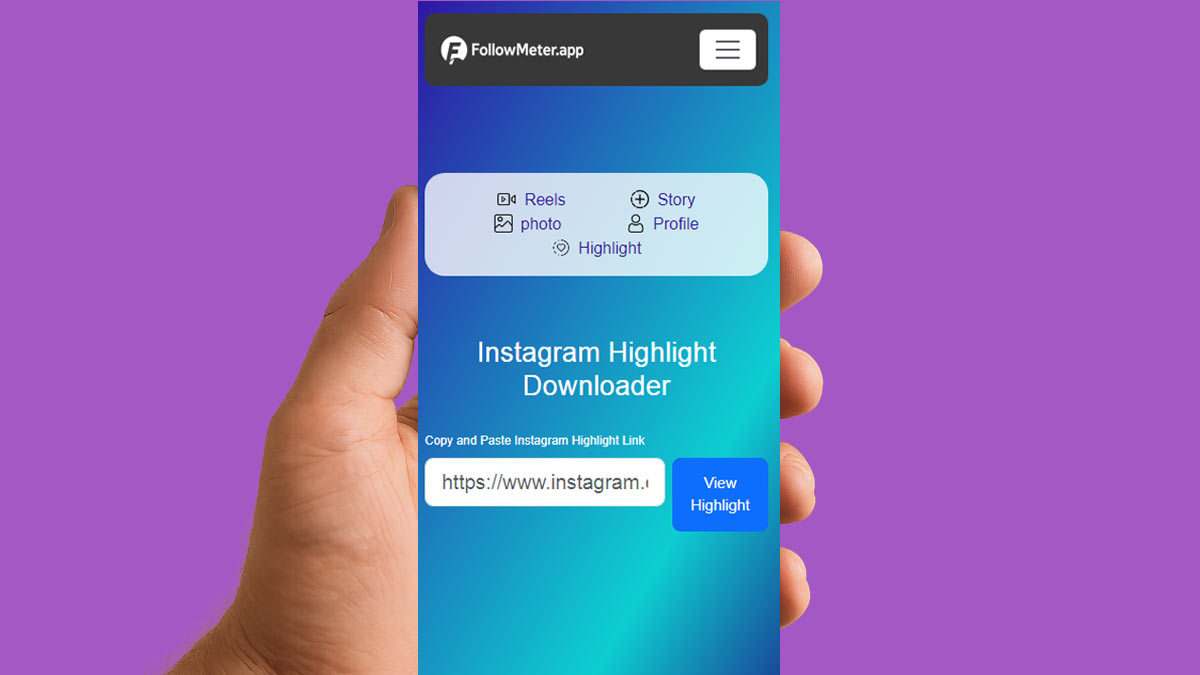
FollowMeter’s Instagram Highlight Downloader is a free online tool that lets you download Instagram Highlights in full size, HD, or even 4K. Save stories pinned at the top of profiles directly to your device — quickly, safely, and with no login or installation required
Learn MoreYes — it’s completely free. No fees, subscriptions, or hidden costs. You can download unlimited thumbnails without paying a dime.
No. You don’t need to log in or share personal information. Simply provide the Reel link or username to start the download.
Absolutely. Our tool saves thumbnails in their original, high-resolution quality. You’ll get crisp, clear images instead of low-resolution versions — perfect for analysis or creative projects.
Open Instagram, find the Reel you want, and tap it. Copy the URL from the app’s share option or your browser’s address bar. If you don’t have the exact link, you can also enter the profile username in our tool.


 Reels
Reels
 Story
Story
 photo
photo
 Profile
 Highlight